Table of Contents
- Why Dual Monitor Ergonomics Matter for Your Neck and Eyes
- Step 1: Measure Your Desk Depth and Plan Your Layout
- Step 2: Position Monitors at the Right Height and Distance
- Step 3: Master Proper Desk Posture for Dual Screens
- Step 4: Angle and Align Your Screens to Reduce Strain
- Monitor Arm Benefits: Why They Beat Standard Stands
- How to Fix Neck Pain from Computer Work: Adjustment and Recovery
- Step 5: Manage Cables and Finish Your Workspace Setup
- Frequently Asked Questions
Last Updated: October 2, 2026
Why Dual Monitor Ergonomics Matter for Your Neck and Eyes
Learning how to set up dual monitors ergonomically is the difference between a workspace that supports you and one that wears you down.
At Office Furniture Warehouse, we’ve spent over 35 years helping people build workspaces that work.
The problem is repetitive strain. Your head weighs roughly as much as a bowling ball, and every inch you crane it forward adds load to your cervical spine.
The good news: a few measurements fix most of it. Here are five steps that take about 30 minutes and last for years.
Step 1: Measure Your Desk Depth and Plan Your Layout
Start with a tape measure, not a shopping cart. Desk depth sets how far your screens can sit from your eyes.
Most standard desks run about 30 inches deep, workable, but tight once you add a keyboard and monitor stands. Shallower than that, you’ll struggle to hit a comfortable focal distance.
Measure width too. Two 24-inch screens side by side need roughly 45 to 50 inches of clear space, plus breathing room so the bezel alignment doesn’t force your head to one side.
OSHA computer workstation eTool guidance notes that the top of the screen should sit at or slightly below eye level, with the monitor directly in front of you.
Primary vs. Secondary Display Placement
One screen should be your primary display, dead center in front of you.
- Primary display: centered, straight ahead, where your eyes rest most
- Secondary display: off to the side, angled inward toward your face
- Best for writing or coding: primary centered, reference material on the second
- Best for spreadsheets: both screens angled slightly inward in a shallow V
If you split time evenly between both screens, angle them evenly and sit at the seam to keep gaze shifting short.
Step 2: Position Monitors at the Right Height and Distance
Height and distance do more for your posture than any other adjustment. Get them right and most neck strain disappears.
The Arm’s Length Rule and Eye Level Alignment
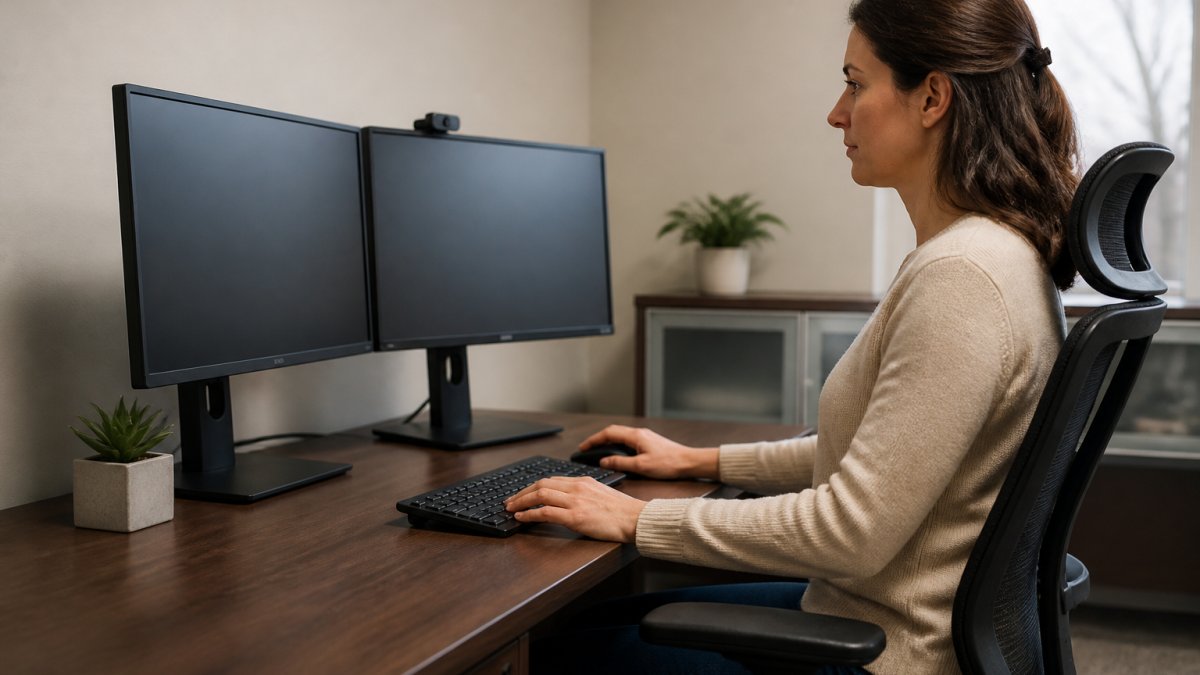
The arm’s length rule: sit back, extend one arm, and your fingertips should just touch the screen. That’s your focal distance, usually 20 to 30 inches.
For height, the top third of the screen should land at or just below eye level.
A common mistake is stacking monitors so the top edge sits above your head, forcing your chin up all day.
If you wear progressive lenses, set your screens even lower than standard advice suggests. Progressives force your chin up to find the reading zone, so a lower screen keeps your neck neutral.
Step 3: Master Proper Desk Posture for Dual Screens
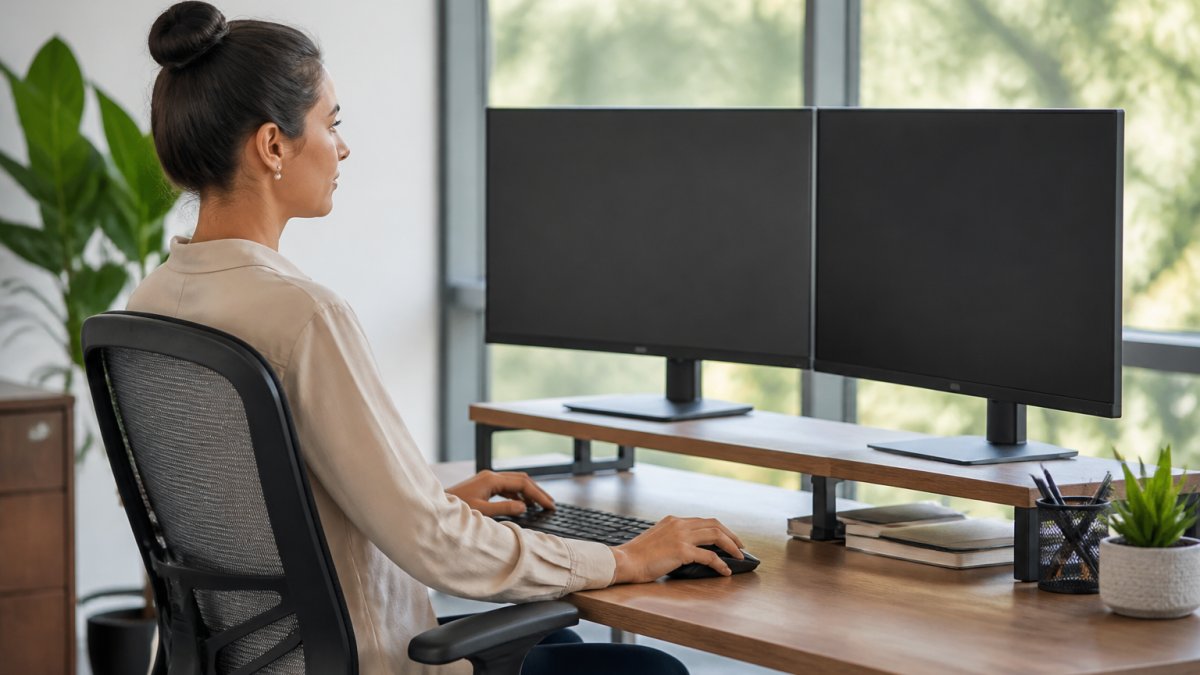
Proper desk posture for dual screens starts at your chair, not your monitors. Fix the seat first, then adjust the screens.
Set chair height so your feet rest flat and thighs sit roughly parallel to the floor, elbows near 90 degrees and shoulders relaxed.
Check lumbar support: a firm curve at the lower back keeps your spine in its natural S-shape. Without it, you’ll slump forward within an hour.
Then bring the screens to you. Here’s the sequence:
- Feet flat, knees near hip height
- Lower back supported, not arched
- Elbows at 90 degrees, wrists straight
- Primary screen centered at eye level
- Secondary screen angled inward
- Top of both screens at or below eye level
The order matters. A perfect monitor setup on a bad chair still ends in neck pain.
Step 4: Angle and Align Your Screens to Reduce Strain
Screen angle controls how much your eyes and neck move and how much glare bounces off the panel. Small tweaks pay off over a full workday.
Tilt each monitor back about 10 to 20 degrees.
For side-by-side screens, angle the outer edges toward you like a shallow book curved around your face. This shortens gaze shifting and keeps peripheral vision useful.
Landscape vs. Portrait Orientation
Most dual-monitor advice assumes both screens sit in landscape, a mistake for many workflows.
A vertical (portrait) monitor shows more lines of text at once, cutting scrolling dramatically.
The trade-off: portrait is poor for video, wide spreadsheets, and horizontal timelines.
A practical split for a two-screen setup:
- Primary in landscape: video calls, spreadsheets, design work, anything wide
- Secondary in portrait: code, documents, email, chat, reference PDFs
- Both portrait: rare, but useful for writers and analysts juggling two long documents
- Both landscape: the default for even split-screen multitasking
If you rotate a screen, check that your OS display settings match the physical orientation. A portrait panel left in landscape mode in software will letterbox everything.
Curved and Ultrawide Considerations
Curved ultrawide monitors handle angle differently. A single curved display replaces two flat panels and keeps focal distance even across the screen, so your eyes don’t refocus as your gaze travels edge to edge.
The catch: a curved panel is one screen, not two. You lose the hard seam that makes snapping windows natural, and you can’t angle one half independently.
If you run a curved ultrawide alongside a second flat screen, match the panels’ vertical height as closely as you can.
Placing your secondary screen at a sharp angle behind your shoulder is the single most common cause of one-sided neck pain. If you have to turn your head more than about 30 degrees to see it, move it closer and angle it in. The same rule applies to a portrait screen placed too far to the side.
Monitor Arm Benefits: Why They Beat Standard Stands
Monitor arm benefits go beyond a tidier desk. Arms give you height, depth, and angle control that fixed stands can’t match.
A monitor arm clamps to your desk edge or mounts through a grommet, letting you raise, lower, tilt, and swing each screen independently, exact eye level without stacking books under a stand.
The practical wins:
- Reclaim desk depth for your keyboard and notes
- Set each screen at its own height and distance
- Switch between landscape mode and portrait mode in seconds
- Push screens out of the way when you need the full desk
Portrait mode deserves a mention: coders, writers, and anyone reading long documents often prefer one vertical screen, which shows more lines and reduces scrolling. A monitor arm makes that switch effortless.
The Laptop + Monitor Hybrid Setup
Most dual-monitor guides assume two identical desktop displays, but many people run a laptop plus one external monitor.
The core problem: a laptop on a desk puts the screen roughly 8 to 12 inches below eye level.
The fix is to raise the laptop. A stand or stack of books brings the top of the screen toward eye level.
A workable hybrid layout:
- External monitor: primary, centered, top edge at or just below eye level
- Laptop: raised on a stand, positioned to one side, screen top near the same height as the external monitor
- External keyboard and mouse: directly in front of the external monitor, not the laptop
- Laptop screen: used for reference, chat, email, or monitoring, not for typing
If you can’t raise the laptop, use it only for low-priority content you glance at and do focused work on the external monitor.
Docking and Cable Reality
A hybrid setup usually means a dock or hub, which adds cable clutter. Route the dock’s cables along the arm channel and bundle the laptop’s power and display cable together so the setup moves as one unit when you adjust it.
If you’re furnishing a whole office, this is where a supplier who knows layout planning saves you real time. Office Furniture Warehouse offers expert design and layout planning.
How to Fix Neck Pain from Computer Work: Adjustment and Recovery
Fixing neck pain from computer work starts with the same measurements above, plus a few daily habits.
First, recheck your primary screen position. If it drifted off center, your head has been tilting to compensate.
Second, take microbreaks: every 20 to 30 minutes, look across the room for 20 seconds.
Third, add gentle movement, slow neck turns and shoulder rolls keep stiffness from building.
The fastest fix for screen-related neck pain is almost always height. Lower your monitors until the top edge sits at or just below eye level, then sit back and let your gaze fall naturally.
Step 5: Manage Cables and Finish Your Workspace Setup
Cable management is the last step, and it’s not just about looks.
Route cables along the arm’s built-in channels, then bundle them behind the desk with clips or a tray.
A few finishing touches complete the setup:
- Add a monitor stand or riser if you don’t use arms
- Use a footrest if your feet don’t reach the floor
- Reduce glare with blinds or a screen hood
- Keep the neutral visual zone clear of clutter
Then do a final posture check: sit down, close your eyes, and open them.
An annual ergonomic assessment keeps things honest. Bodies change, desks get rearranged, and screens drift, a quick recheck takes minutes and prevents months of strain.
Frequently Asked Questions
What is the best way to position dual monitors for ergonomics?
Place your primary monitor directly in front of you at arm’s length, about 20 to 30 inches away. Position the secondary monitor to the side at a 30-degree angle so you can glance at it without twisting your neck. Both screens should sit at eye level, with the top bezel roughly at or slightly below your line of sight. This keeps your head in a neutral position and reduces strain on your cervical spine during long work sessions.
Should dual monitors be angled toward each other?
Yes, angling both monitors inward creates a shallow V shape that keeps each screen roughly perpendicular to your line of sight. A 20 to 30 degree angle on the secondary display works well for most setups. This reduces glare, minimizes the focal distance change when you shift your gaze, and keeps your neck from rotating too far. If you use a curved monitor as your primary display, the natural curve already handles some of this for you.
How high should dual monitors be for neck comfort?
The top of your screen should sit at or just below eye level when you’re seated in your normal working posture. If your monitors are too low, you’ll tilt your head down repeatedly and strain your cervical spine. If they’re too high, you’ll crane upward. A monitor arm makes height adjustment easy because you can raise or lower both screens independently. Pair this with a chair that supports your lumbar region so your torso stays upright while your eyes meet the screen naturally.
What are the benefits of using a monitor arm for a dual screen setup?
Monitor arm benefits include freeing up desk space, allowing independent height and angle adjustments for each screen, and making it easier to switch between landscape and portrait mode. Arms also help you achieve bezel alignment so both screens sit flush, which reduces gaze shifting fatigue. For anyone comparing monitor arms to standard stands, the flexibility alone often justifies the upgrade, especially in shared or rotating workstations where different users need different positions.
Most dual monitor setups fail for one boring reason: nobody measures anything. If you’re rebuilding a workspace or furnishing a whole floor, Office Furniture Warehouse can help you get the layout right the first time. We offer expert design and layout planning, a 4-acre inventory of new and pre-owned furniture, and premium brands like Steelcase and Herman Miller at up to 80% off. Visit our showroom today and build a setup your neck will thank you for.
